List Item One
List Item Two
List Item Three
List Item Four
HTML Free Code <bgsound src="yourmusic.mid"> </bgsound>

Saturday, March 20, 2010

Wireless Keyboard Tips

Choosing the Right Wireless Keyboard 
Wireless keyboards come with a variety of features and in a variety of styles. Choose the shape of the keyboard which is most comfortable for your hands. Some people prefer the ergonomic keyboards. The Logitech wireless keyboard offers several styles and features, from basic to advanced. The more advanced keyboards will allow you to easily access the internet, email, online radio and media. Decide what features you will need or want, and what your budget is before you decide on a wireless keyboard.


Wireless Keyboard Range 

The range of your wireless computer keyboard will depend on the type of keyboard that you have. Most wireless keyboards have to be within the line of sight of the receiver, making the range around 10 feet maximum. If you have a wireless keyboard which uses radio signals, the range could be upwards of 100 feet.


Benefits to a Wireless Keyboard 
As with any wireless technology, a wireless keyboard will help reduce clutter and improve mobility. By using a wireless computer keyboard, you will not be bound to your desk at all times during use. You can simply place the keyboard on your lap and answer phones, move around, etc while you are working. Wireless computer keyboards also reduce unsightly wires and clutter in both an office and home setting.


Wireless Keyboard Troubleshooting 

If your wireless computer keyboard starts acting slower then normal or does not perform optimally, there are a few things you can check. Make sure the batteries are charged or fresh. Also, make sure that the receiver, which is connected to the computer, is not blocked in some fashion. Finally, make sure that you are within the range given by the manufacturer for the wireless keyboard.


How a Wireless Keyboard Works 

Similar to a wireless mouse, a wireless keyboard works by plugging a receiver into your computer via a USB or PS/2 port. The keyboard sends a signal to the receiver. If you start to notice slower performance then usual, make sure that nothing is blocking the receiver and that the batteries in the keyboard are charged.

Wireless Mouse Tips

Wireless Mouse Troubleshooting 
If your wireless mouse starts acting slower then normal or does not track smoothly across the screen, there are a few things you can check to make sure of optimal performance. Make sure the batteries are charged or fresh. Also, make sure that the receiver, which is connected to the computer, is not blocked in some fashion. Finally, make sure that you are within the range given by the manufacturer for the wireless keyboard.


Choosing a Wireless Mouse:

If you are right handed, the Logitech cordless mouse may be the right choice for you. While the Belkin is designed to be versatile, the Logitech is ergonomically designed for your right hand. The Logitech also brings these features to the table:

  • 4 button and tilt wheel built in to the ergonomically designed unit
  • Functions on 2 AA batteries or use of the desktop charger
  • Cordless USB mini receiver included (and USB to PS/2 adapter)


How a Wireless Mouse Works 

Wireless mice come with a receiver station which plugs into your computer via a USB or PS/2 connection. The wireless mouse will then send a signal to the receiver. The mouse will need to be recharged, and will require the use of batteries or a recharging station.


Benefits of a wireless mouse 

Using a wireless mouse for your computer is a great way to reduce clutter and wires around your computer. You also won't need to worry about where you put your computer tower and if your mouse cord is long enough. The range is excellent and it is one less wire to worry about!


Optical and Laser Cordless Mouse 

Both optical and laser wireless mice operate on light technology as opposed to the old standard mouse wheel. The laser mouse is the latest technology, and light defuses better, making the mouse movements smoother and easier to use on non traditional surfaces. With both optical and laser wireless mice, you do not need to use a mouse pad.


Choosing a Wireless Mouse:

Belkin is a great manufacturer of wireless products. The Belkin wireless mouse comes with several terrific features to consider:

  • Versatile and can be used by left or right handed users
  • Operates at a range of approx 6 feet - great for use in conference rooms
  • The mouse is rechargeable (YDB-F8E845)
  • Four customizable buttons, and scroll wheel.
  • Mouse runs on 2 AA batteries.

Wireless Network Tips

Office Wireless Network 
A wireless network is ideal is an office environment. There is no need to worry about running cables, drilling holes, or having large closets or rooms full of cables for the office. It is cheaper to run a wireless network due to lower start up costs. If employees have laptops, it increases productivity as they can work in several locations and clients can easily hook up to the network. An office will also look more professional due to the lack of cables and wires running across the office floor.


 Wireless Network and Your Health 

There have been no scientific studies to indicate that wireless signals can affect your health in a negative manner. A wireless network uses radio waves to transmit information and transmit less then an average cell phone.


Wireless Network: WLAN vs. LAN 
A LAN is also known as a local area network. A WLAN is a wireless local area network. If your home or office currently uses a LAN, it can easily be converted over to a wireless network, or a wireless network can be added onto the LAN to increase portability, functionality and productivity.


Running Windows XP on a Wireless Network 

If you are running Windows XP and having issues with your wireless network connection, check to see what service pack you are running. Most problems can be fixed by upgrading to service pack 2. Service pack 2 addressed an issue with it̢۪s Wireless Zero Configuration, which affects your wireless network connection ability.


Peer to Peer Wireless Network 

A peer to peer network is a network where computers talk directly to one another for the purpose of sharing files and resources. This form of network is also known as an ad hoc network. This can be set up on a wireless network without the use of an access point or router. All the computers and devices will need to have a wireless internet card and be configured to run on an ad hoc basis. You will not be able to share an internet connection on a peer to peer network.


Wireless Network Equipment 

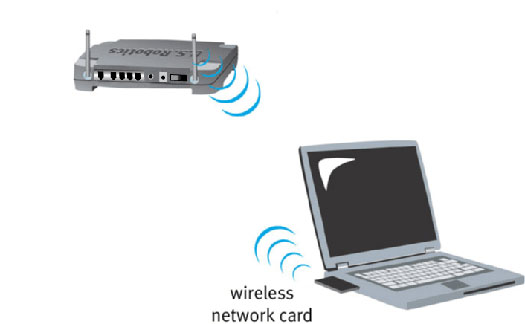
Setting up a wireless network is simple, and the equipment you will need depend on the kind of wireless network you decide to set up. For a peer to peer network, you will simply need wireless network cards for all the computers. If you are also sharing a network connection, you will need a wireless router and maybe a wireless hub, depending on the amount of devices on the network. You will also need an access point, which can be a dedicated piece of hardware, or a computer with specific software.


Benefits to a Wireless Network 

There are several benefits to a wireless network, the main focus being portability. It is common for notebook computer users to use a wireless network card, which will allow them to access the internet, other computers on the network, devices, etc from anywhere within the range of the wireless network. Wireless network management can be simpler then a wired network, because adding new systems does not require wiring of an office or home, plus there are no unsightly cables to troubleshoot.


Trouble Shooting Wireless Network Problems 

If your wireless network is acting sluggish or not working properly, check to make sure that all batteries are charged and working properly in your wireless devices. This includes laptop computers as well. Next, check to make sure you are within range of the access points and/or wireless router and that it is not covered with unnecessary objects. Check to make sure that all configurations are set properly and that there are no objects, such as cordless phones or microwaves in the area that can interfere with the signal.


Wireless Antenna 

A wireless antenna is used to boost the increase the range of a wireless network. However, be sure to check the hardware of the wireless router or access point that you have, because not all are compatible with a wireless antenna. An alternative to boost the range is to add additional access points to the network.


Wireless Network without a Laptop 

Even if you do currently own a laptop, there are benefits to considering a wireless network in your home or office. It is easy to expand and add additional computers and devices without having to special wire cables. There are no unsightly cables to look at or trip over. If you ever do purchase a laptop, it will be easy to add into the network. There are no holes to drill, no cables to string, and a wireless network can potentially be less expensive to start up and maintain then a wired one.


Switching to Wireless Network 

There are several benefits to running a wireless network. You do not have the costs of running and maintaining cables and you do not need to worry about cables when designing the layout of an office area. Wireless network equipment is comparable in cost to wired equipment. Changing from a wired to a wireless network will give your employees greater freedom and can increase productivity. Clients can stop by the office and access the network, making transfer of files and data easier. Finally, wireless network management can be less complex and costly then that of a wired network.


Trouble with Access Point on Wireless Network 

If you are sure that you have configured the wireless access point/wireless router exactly as stated per manufactures instructions, there is a chance the hardware is defective. While this does not happen often, make sure you save all receipts and contact customer service and tech support of the manufacture to attempt to fix the problem.


Wireless Network: Access Point Definition 

An access point is a station that broadcasts wireless internet to other computers in the wireless network. An access point can be a router, computer, or special access point equipment. It can also be called a base station or hot spot.


Wireless Network: Hot Spot 

A hot spot is essentially the same as an access point, but is usually found in restaurants, stores, etc, where people with Wi-Fi laptops can access the internet. Sometimes this service is free, but sometimes it is a paid service.


Wireless Network Kits 
There are several wireless network kits available for setting up computers on a wireless network. These kits include a wireless router and network card

Wireless Security Tips

Encryption is widely used for security of data, including wireless network security. Encryption is where data is translated into code for transmission via the radio waves. An encryption key, similar to a password, is needed to encrypt the code for transfer. If you are only minimally concerned with security, such as in wireless home network security, you may consider WEP encryption, which some find easier to configure with their current equipment.


Wireless Security: Protecting your password 

Your passwords are crucial to your wireless network security and should not be revealed to unauthorized individuals. Do not leave your password lying around or written in an obvious location. When entering your username and/or password, make sure people are not milling around and looking over your shoulder. Be very careful of responding to emails asking for passwords. Most legitimate companies do not ask for passwords via email due to the lack of security. These tips are useful for both wireless security and wired security.


Wireless Security: File Sharing 
Wireless network security is important. Always make sure to require a password from users connecting to your computer. Be careful about what folders you allow others to have access to. You can also set passwords on specific folders to further increase security.


Deciding on a Firewall 

The firewall you choose should be based primarily on the level of needed security, budget, reliability and the potential need to expand the wireless network. The most basic firewall, with minimal security is one that is part of a basic wireless router. The next level up is a dedicated firewall. After that comes a dedicated firewall device with a gateway. Finally, the highest level of wireless security is a dedicated firewall device (such as a computer) with a combination of proxy firewall and full packet filtering.


Wireless Security Encryption: 

WEP, wired equivalent privacy, is the standard encryption security that is built into all Wi-Fi devices. WEP does not provide as good of wireless security as WPA does, but is adequate for minimal security purposes.


Wireless Security: MAC filtering 

All devices on a wireless network have a MAC (media access control) address. This is a unique identification number that is part of the individual hardware. MAC filtering is where the access points on a wireless network will only speak with devices that you specify. MAC filtering is an excellent tool to use to enhance wireless security. This works great for wireless home network security, because the number of wireless devices will be manageable to work with.


Wireless Security: Firewall 

A firewall is either a piece of hardware or software which is used to block outsiders from accessing a network. Firewalls are an essential part of wireless network security. It works by controlling traffic between given zones of trust. A user has the ability to determine what is trustworthy and what is not. If you are running a wireless network, you may want to consider using a firewall which is built into a wireless router.


Wireless Security: Securing your laptop 

One of the benefits of a wireless network is the portability of computers. However, this can also lead to a serious wireless security risk and theft of computer. If you are traveling and using your computer in a hot spot area, do not leave it lying around outside of your eyesight. Consider investing in a cable lock, which will secure your laptop (or desktop) to a stationary object. There are higher levels of security you can look into, such as cards that sound an alarm with unauthorized movement.


Using more then one firewall 

You should only run one firewall on your network. This is true for both office and wireless home network security. If you run additional firewalls, you run the risk of conflicts. However, for wireless security, you can run one hardware firewall and one software firewall. For example, you can use a wireless router for the hardware firewall and firewall software on the computer.


Wireless Security: Setting Password 

Remember that your wireless home network is broadcast via radio waves, and can be accessible to anyone with range. If you do not set a password on your ad hoc network, then anyone within range can access the network. For this reason, it is crucial to set a password to protect your systems and to increase your wireless network security.


Basic Wireless Network Security 

There are several basic steps that everyone should do to help ensure wireless network security. When configuring your network, change the default names on the computers and set the SSID not to broadcast. Use wired equivalent privacy (WEP) encryption at a minimum. Change all default passwords for software and hardware. Finally, make sure to run antivirus software and antispyware software on all your computers. 


Choosing a good password for wireless security 

There are several tips to keep in mind when choosing a good password for wireless security. Do not use your name, initials or easy to guess numbers, such as address, birthday, etc. Any password based on personal information is a poor choice. Passwords should be at least eight characters long, and includes both numbers and characters. And remember, no matter how clever your password is, if you write it down where it is easily found, it won't be very secure.


Wireless Security Encryption: WPA 

WPA, Wi-Fi protected access, is an upgraded version of WEP. This newer protocol is more secure then WEP and, if you use a good password, is much tougher to crack. WPA devices are backwards compatible with WEP; however, in order to use WPA for wireless network security, all devices need to have WPA.

Wireless Internet Tips

Wireless Internet Sharing 
If you plan on sharing your wireless internet access, you will need to have that option turned on in your settings. However, if you do not have other computers hooked up to the network at this time, for security purposes, you should leave the setting turned off until the need arises to share the wireless internet access.


Wireless Internet Speeds 

Coming in at the slowest is Bluetooth, followed by 802.11b, 802.11a and topping the charts currently is 802.11g. 802.11b is roughly equivalent to the traditional wired 10BaseT Wired Ethernet networks. Therefore, switching to Wi-Fi should not considerably slow down your wireless internet connection.


Wireless Network Equipment While Traveling 
You will need to have a wireless network card, either an adapter or integrated in your laptop. If you do not have an available slot on your PC, there are adapters you can purchase that plug into a USB port on the computer.


Finding a Wireless Internet Hot Spot 

There are several stores and restaurants that offer wireless internet access, such as Starbucks. If you have a particular destination in mind, you can call the hotels to see if they offer the service. There are also hot spot directories that you can search to find wireless internet access.


Wireless internet - WiFi Standards

802.11 is the Wi-Fi standard, however there are other standards which are variations of the 802.11. These include:

  • 802.11a
  • 802.11b
  • 802.11g
  • 802.11i.

The differences among these standards includes speed, transmission frequency, and price. 802.11g is backwards compatible with previous products, but that is not the case with 802.11a. Make sure you check on compatibility issues prior to purchasing products.


Wireless Internet and Dial up 

It is possible to share a wireless internet connection with dial up, but it is not a very good idea. Some access points, such as the airport extreme base station from Apple, will allow this. However, there is some slow down time with sharing a wireless internet connection, and if you decide to share a dial up connection, you won't be surfing anything fast.


Finding a Wireless Internet Hot Spot in a Chain 

If you are traveling and know that you will be stopping at Starbucks, for example, and want to access the internet, you can check out their website to see what specific franchises offer wireless internet access.


Paying for Wireless Internet Access 

Most likely, you will need to pay for the high speed wireless internet access when you travel. Starbucks for example uses T-mobile as their wireless internet provider. You will need to have a t-mobile account in order to access wi-fi at Starbucks. There are some restaurants that may advertise free Wi-Fi, but in general, you should expect to pay a fee.


Nationwide Wireless Internet Service 

There are a plethora of national wireless high speed internet services available. AT&T, Sprint PCS, T-mobile, and Verizon are a few which offer nationwide service. You will want to check out various pricing, roaming policies and fees for the various networks.


Mixing Apples and PC's to Share Wireless Internet Connection

You can mix apple and PC on a wireless network and share a wireless internet access. For example, Apple makes an access point called the AirPort Extreme Base station. Even though it is made by Apple, it still uses the Wi-Fi standard, and PC computers with a wireless adapter on the network will be able to share the wireless internet connection


Mixing Wireless Internet and Wired Internet 

You can easily share a wireless internet access while still maintaining a wired network. There are many wireless routers on the market which offer both wired and wireless network capabilities. It is also possible to add on an access point after a wired router for wireless access.


Configuring Wireless Access Point to Share Wireless Internet Connection 

Once you install the drivers on your computer for the access point, you will be able to open up the configuration software that comes with the router. The IP address 192.168.0.0 is the lowest in the network and should be dedicated to the router. Make sure to follow the specific configuration instructions that come with your wireless router, as each product will be slightly different from one another.


Wireless Internet Equipment 

The beauty of the WI-FI is that it set a standard for wireless networking. Because of this, you do not need to have equipment from all the same venders in order to run a successful wireless network. You will be able to share wireless internet access as well without having equipment from all the same venders.


Configuring Wireless Internet Card 

You will need to use the configuration software that comes with your network card to configure your computer to work at various hot spots. Simply type in the hotspot network name (various depending on the service you are using) and state the type of network, such as access point. You can also scan available wireless broadband internet access in the area and choose which network you wish to connect with.


Wireless Internet WIFI 

WI-FI, the 802.11 standard, is important for a variety of reasons. Having a standard in the industry ensures that anyone using wi-fi will be using the same standard, therefore equipment and connections are interchangeable. Having a set standard makes setting up wireless networks, sharing wireless internet access and working with wireless equipment more users friendly.

How to buy a Computer hardware and software?

BUYING LOCATIONS
The first and important thing is to consider the buying location when purchasing a computer or computer equipment, software and hardware. There are many location to buy a computer but We have listed here some locations you will be able to purchase computer equipment or from and what to look out for. Please select one of the below locations you plan on purchasing from.
INTERNET
Internet is very easier, faster and cheaper way to buy computer hardware and software. Because a manufacturer provides you the detail information about its products, prices and where they are available for sale. A shop provides you a list of goods available, price of each item, that is why you can easily compare the price and quality of one company products to other company products.
LOCAL RETAILER
If your are not interested to buy a computer using internet then Local Retailer is one of the safest location to buy computer hardware and software. However the important issues to find a suitable shop for this purpose. So please first verify the return and warranty policy in case the device is not functioning or is not compatible with your computer.

How to Buying a Printer?

Technology of printers
There are many types and technology of printer are available in market but the most popular and commonly used  are inkjet and laser printer.
Ink Jet Printer. The inkjet printer is not-impact character printer and prints one character at a time. The printing quality of inkjet printer is measured by the number of tiny ink of drops per inch(dpi). Most inkjet printers range from 300 to 2400 dpi. Printers with higher dpi usually are more expensive but having high printing quality. The speed of an inkjet printer is measured by the number of pages per minute (ppm) it can print. Its printing speed is up to 15 ppm. Therefore purchasing a printer can be  depends upon printers dpi and ppm but It depends upon user need.
Laser Printer. A Laser printer is the fastest and high quality printer, but a laser printers are more expensive than inkjet printers and their print quality is also higher. The print quality and printing speed of laser printers make them ideal for offices and business. The laser printer can print text and graphics in very high quality resolution. The commonly user laser printers have resolution of 300 or 600 dpi and printing speed is from 5 to 30 ppm. The high quality laser printers have resolution from 600 to 2400 dpi. The printing speed of these printers is also more than 150 ppm.
Speed and price range
The price of laser printers depend on the quality and printing speed. The color printers are more costly than black-and-white laser printers. The higher the resolution and speed, the more expensive the printer.The price range can vary depending upon the quality of the printer and the type of printer for example inkjet, laser printers.
READY TO BUY
Once you have reviewed the appropriate information and believe that you are ready to make a purchase of a printer ensure that the source which you plan on purchasing the printer from is a reputable source and you have reviewed our section on what to look out for when purchasing over the Internet.

Tips On Buying A Computer Motherboard

There are many factor of the motherboard is a crucial consideration when looking at a motherboard.
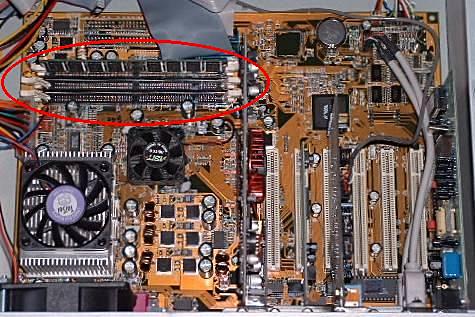
PC motherboard has two or more expansion slots used to add new components to the computer. The memory chips are also inserted into the expansion slot to expand the size of memory. Given option are very important in any motherboard for example:
Accelerator: It is used to increase the speed of processor.
I/O: It is used to connect input/output devices such as printer, mouse and keyboard.
Game: It is used to connect joystick.
Disk Controller: It is used to connect disk and CD drives.
Modem: It is used to connect other computers through telephone line or cable telephone line.
TV Tuner: It is used for viewing television channels on the computer monitor.

Tips On Buying Computer Monitors.

Technology of monitor
There are two basic types of monitors that are used with personal computer.

  • CRT monitors

  • Flat-Panel Monitors
when you are purchasing a monitor it is important to know, you need a CRT monitor or a Flat Panel monitor.
CRT Monitors. A CRT monitor is similar to standard television. Like televisions, CRT monitor size is measured diagonally, in inches, across the front of the screen. Today, CRT monitors are available in various sizes, i.e., 15, 17, 19, 21, and 22 inches. The large size monitors are more expensive and allow you to view more information on the screen at once. 
Flat Panel / LCD. A flat panel monitor is also called LCD monitor. A flat panel monitor takes up less desk space and also consumes less power. Flat panel monitors are available with different sizes such as 15, 17, 18, 20, 21, and 23 inches. Flat panel monitors are commonly used in mobile devices such as laptop and table PCs. Similarly, smart phones, PDAs calculators have LCD screens.
There are two main categories of LCDs. These are

  • Active Matrix LCD

  • Passive Matrix LCD
Resolution
The quality of monitor screen depends on its resolution, which is generally proportional to the size of screen.
15"  monitor typically has a resolution of  800 x 600 / 1,024 x 768
17"  monitor typically has a resolution of  1,280 x 1,024
19"  monitor typically has a resolution of  1,280 x 1024
21" monitor typically has a resolution of  1,600 x 1,200.
Once you have reviewed the appropriate information and believe that you are ready to make a purchase of a new monitor, ensure that the source which you plan on purchasing the monitor from is a reputable source and you have reviewed our section on what to look out for when purchasing over the Internet.

Tips On Buying A Computer Memory.

Type Of Memory
There are many types of memory available in market, Before purchasing any memory or considering purchasing memory it is important that you distinguish the type of memory that is required. Below is a listing of some of the configurations of computer memory.
Memory type: SIMM, DIMM, RIMM,
Amount of Pins: 72-Pin, 30-Pin, etc..
Speed of memory: 10ns, 60ns, 70ns, etc..
Below is a listing of additional considerations to look out when purchasing computer memory.

Tips For Buying A Hard Drive

Interface of the hard disk
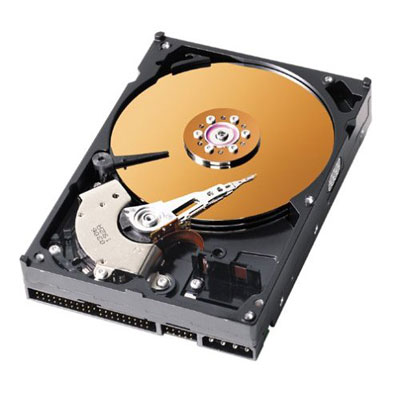
There are many types (interface) of hard disks available in the market for example IDE/ATA,SCSI,External hard drive. That is why first decide your need is internal or external hard drives. When looking to purchase a hard disk drive the first it is important consideration is the Interface the hard disk drive uses to communicate with the computer .

  • IDE/ATA  This type of hard disk is used with IBM compatible computers, and very easy to install in a computer. Each IBM computer has the availability for a maximum of four IDE devices, for example IDE hard disk , CD drive and DVD drive.

  • SCSI  The SCSI interface is generally a better and  faster solution when compared to IDE/ATA but this solution is not best for common user only best for server level machine.  however in some cases can be more difficult to install. To install a SCSI hard disk drive you must have a SCSI card and an available connection on the SCSI cable connecting to the SCSI card.

  • External Hard disk There are many solutions are also available; these include, USB Hard disk drive, Fire wire Hard disk drive and Parallel Hard disk drive. The main benefit with external hard disk, you can move it where you want very easily. Mostly external hard disk is used for data backup and change the physical location of data.
Other considerations
Here are some important considerations to look at when purchasing a computer new hard disk drive:
Speed:  Hare disk speed is playing an important role when your consider a computer speed. The accessing speed of hard disk is also very high as compare to other storage devices. It is from 5 to 15 MBps. The platters of hard disk rotate from 3000 to 10,000 revolution per min.
Warranty:  How long is the warranty and what does it cover.
Support : Is the technical support number a free number is it open 24 hours 7 days a week.

Tips On Buying A DVD Drives.

Technology of DVD Drives
Before considering purchasing a DVD drives, it is also good consider the other available options.
CD-R - A CD-writer or recorder (or simply CD-R drive) is used to write data on CD-R disks. Usually, a CD-writer can read information from CD as well as write information on CD, The locally produced CD-R disks are created with CD writer. The speed of these drives is up to 52X or more.
CD-RW - You must have a CD-RW drive to write date on the CD-RW. These drives have read and write speed is up to 52X or more but the re-write speed is 10X or more. The CD-RW drive is advanced and more expensive than CD-R drive. It can write data on both CD-R and CD-RW discs and also read data from them
DVD - DVD stands for Digital Video Disk Versatile Disc. DVD-ROM is an extremely high capacity optical disc with storage capacity from 4.7 GB to 17 GB.
TRANSFER RATES
DVD-ROM  is an extremely high capacity optical disc with storage capacity from 4.7 GB to 17 GB. DVD disc is specially use to store movie films. It is also used to store huge database, music, complex software etc.
OTHER CONSIDERATIONS
There are some other important considerations to look at when purchasing a computer DVD drives include:
DVD option: DVD-R, DVD-R DL, DVD+R, DVD+R DL,DVD-RW, DVD+RW, DVD+RW DL, DVD-RAM.
Warranty:  How long is the warranty and what does it cover.
Support : Is the technical support number a free number is it open 24 hours 7 days a week.

Tips On Buying A CPU / Processor

TYPE
The type of the processor can be very important consideration for users who are building a computer. The main thing in processor is the compatibility with the motherboard, Because the processor chip is plugged into the motherboard. Today there are many processor manufacturers AMD, Motorola and Intel. Final decision to buy a processor  depends upon user need for example a home or basic user can buy Intel Celeron or AMD processor. If you can afford then must go for latest processor if you want your computer to retain functionality for four to six years. When considering any of the above companies product ensure that a motherboard that is compatible with that product is also purchased. For example if an Intel motherboard is purchased or currently installed into the computer you will want to consider an Intel Processor.

Tips On Buying A CD-ROM Drives.

Technology of CD-ROM
Before considering purchasing a CD-ROM it is also good consider the other available options.
CD-R - A CD-writer or recorder (or simply CD-R drive) is used to write data on CD-R disks. Usually, a CD-writer can read information from CD as well as write information on CD, The locally produced CD-R disks are created with CD writer. The speed of these drives is up to 52X or more.
CD-RW - You must have a CD-RW drive to write date on the CD-RW. These drives have read and write speed is up to 52X or more but the re-write speed is 10X or more. The CD-RW drive is advanced and more expensive than CD-R drive. It can write data on both CD-R and CD-RW discs and also read data from them
DVD - DVD stands for Digital Video Disk Versatile Disc. DVD-ROM is an extremely high capacity optical disc with storage capacity from 4.7 GB to 17 GB.
TRANSFER RATES
Today CD-ROM  drives have transfer rates or speeds ranging from 52X to 72X or more. For Example, a 52X CD-ROM drive has a data transfer rate of 7,200 KBps (i.e. 48 X 150 = 7200)or 7.2 MBps. It means that the higher the number, the faster the CD-ROM drive. This speed is generally only going to be noticeable when installing a program or copying large amounts of data from a CD.
PRICE RANGE
For a CD-ROM drive, not to be confused with a CD-R, CD-RW or DVD drive can vary depending upon the speed and the interface the CD-ROM drive uses.

Tips on Buying a Server Machine

NEW vs. USED
Today there are two options to buy a Server computer, a new or used computer. Used computer are some time out of date, but you can buy it with very low price as compare to new computer, but I think branded or used computer are much stable than a new computer. Before purchasing a Server computer consider if you should purchase a new or used computer. Many individuals sell computer before they are out of date allow you to purchase a relatively decent computer. Before purchasing a new computer from a computer manufacture look at what is available and review the below precautions when purchasing a computer.
More Considerations
When purchasing a Server computer it is likely that you will have a general idea of what you may like in the computer or how you would like to configure the computer. Below is a listing of the various components likely to be found in a computer and recommendations and tips when considering any of the following components.
 
Device
Short recommendation
Case
Generally there are two types of Computer Case are available in market, for Example  Tower case and desktop case. The system unit of the desktop personal computer can lie flat on the desk or table and the monitor is usually placed on the system unit. An other model of the computer case is known tower. The system unit of the tower PC is vertically placed on the desk or table. But purchasing a computer case is generally not an important consideration when you are going to buy a Computer.  However it depends upon the user needs and choice to building a computer case may find it important to consider the following considerations.
 
 
CD Media
CD-R -always will be an important consideration to think about when purchasing a new computer or used computer. A CD-writer or recorder (or simply CD-R drive) is used to write data on CD-R disks. Usually, a CD-writer can read information from CD as well as write information on CD, The locally produced CD-R disks are created with CD writer. The speed of these drives is up to 52X or more.
CD-RW - You must have a CD-RW drive to write date on the CD-RW. These drives have read and write speed is up to 52X or more but the re-write speed is 10X or more. The CD-RW drive is advanced and more expensive than CD-R drive. It can write data on both CD-R and CD-RW discs and also read data from them
DVD - DVD stands for Digital Video Disk Versatile Disc. DVD-ROM is an extremely high capacity optical disc with storage capacity from 4.7 GB to 17 GB.
 
Hard Drive
Hard drives have and always will be an important consideration to think about when purchasing a new computer or used computer. Hard disk is most commonly used storage device in personal computers and laptop computers. Most application programs and operation systems require hard disk for installation and operation.
 
Processor
The computer processor is and will always be an important consideration when purchasing a computer. Processor is considered the brain of the computer. The CPU fetches instructions of program from main memory and executes them one by one. The speed of the CPU is measured in Mega Hertz or Giga Hertz and speed from 500 MHz to 3.4 GHz, it depends upon a user needs, that is why purchasing a processor is an important consideration when building or buying a computer. There are several considerations and additional information about what to ask and look for when purchasing a processor directly or already installed into a computer.